The field guide / 02
How to find a quote in a YouTube video
A few words can lead you back to a whole conversation. Use transcripts, speaker context, and a focused search to find where a quote was said.
When you already know the video
Open the video on YouTube and look for “Show transcript” in the description. For videos with captions, the transcript can help you jump to a line in the video.
Start with an unusual word or a short phrase. If it is missing, try a spelling variation, a shorter fragment, or the topic being discussed. Captions may contain mistakes, and a remembered quote may be a paraphrase.
Play the video at the candidate timestamp and listen to the surrounding sentences. Confirm the speaker and meaning before treating a transcript match as the quote you need.
YouTube explains transcript availability and navigation in its transcript help guide.
When you do not know the source video
Search the most distinctive phrase alongside the speaker’s name, podcast, channel, or event if you know it. Avoid relying on common words alone. If you are uncertain of the wording, describe the idea and say that the quote is approximate.
An illustrative request could be: “Find the interview where a founder talks about winning their first customer before building the product. I think it was a podcast, but I do not remember the exact words.” An exact quote and an approximate memory need different search approaches.
A real example: finding Kennedy’s Moon quote
Take the phrase “We choose to go to the moon.” In NASA’s short Rice speech excerpt, the caption segment containing the start of the quote begins around 0:06. The speech excerpt continues until roughly 0:14, when the narrator returns.
- Open the source at 0:06. Use the transcript to locate the phrase, then play the footage to check the exact start.
- Confirm that Kennedy is speaking. A narrator or another speaker repeating the same words would also produce a text match.
- Listen before and after the phrase. Caption timestamps are starting points; they do not always mark the speaker change or the end of a sentence.
- Read the source description before saving. This upload is a NASA TV preview, so use a complete recording if you need the surrounding speech.
Keep a note such as “NASA excerpt · Kennedy · around 0:06–0:14 · verify cut points during playback.” Timestamps belong to this specific upload; another recording of the same speech will have different times.
Source video and captions checked September 12, 2026. This is a manual walkthrough of a public source, not a FoundFrame search benchmark.
A live FoundFrame walkthrough: the same Kennedy quote
On September 30, 2026, we ran a Light search in the live FoundFrame app using the known NASA video URL. We asked for Kennedy himself saying “We choose to go to the moon,” with a few seconds of context, rather than a narrator repeating the line.
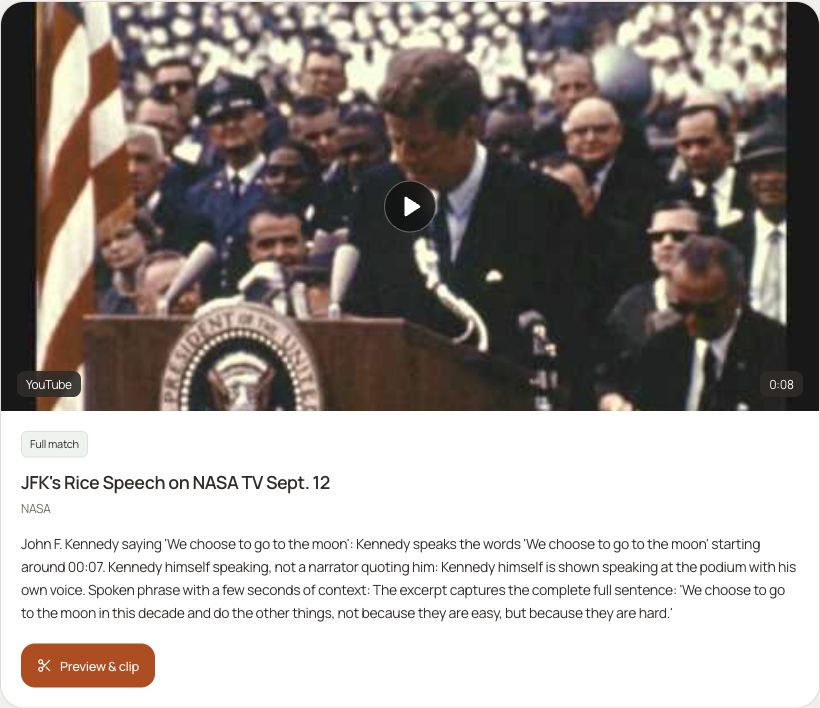
Opening Preview & clip showed proposed cut points of 0:06.8–0:15.5, an 8.7-second selection. The result carried a “Full match” label, but that label still needs a source check.
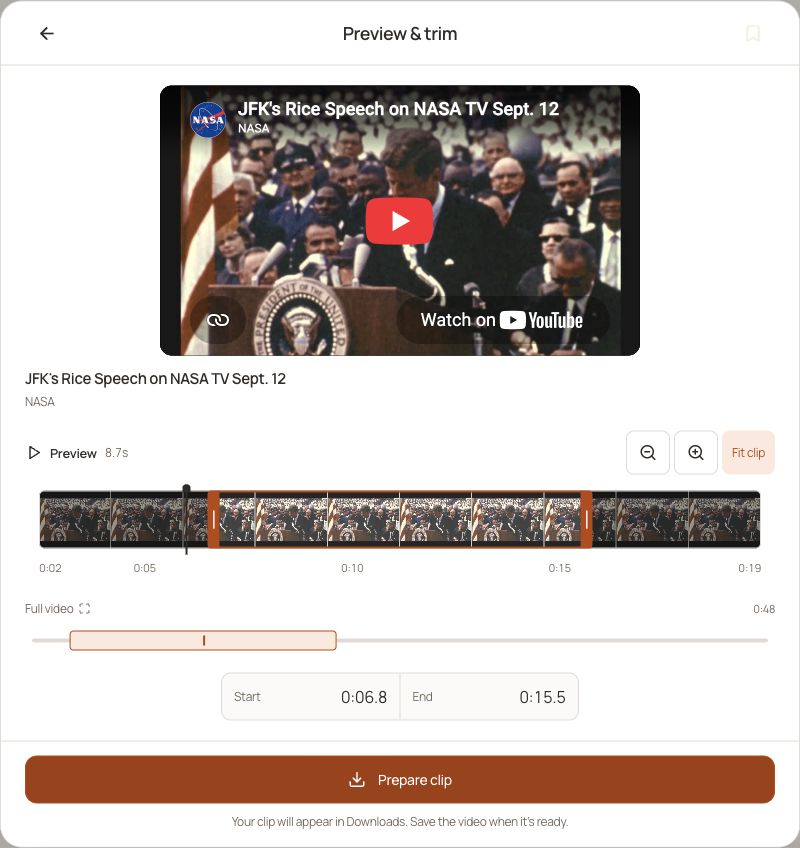
The source’s auto-generated transcript puts the end of Kennedy’s sentence and the return to narration in a caption segment around 0:14. Captions are approximate and do not mark that speaker boundary precisely. Check playback near the suggested end before treating the entire selection as Kennedy speaking.
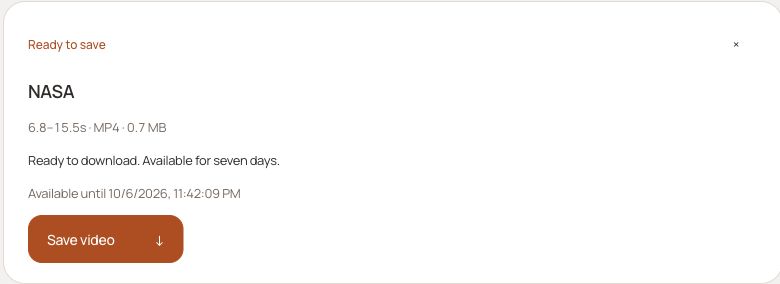
This run used a known source URL and demonstrates locating a phrase within that upload. Results and cut points can vary. Keep the source link and verify the words, speaker, and context for your own request.
Search by quote with FoundFrame
Include the speaker and say whether the wording is exact or approximate. If you need the original speaker, distinguish that from someone else quoting them.
FoundFrame is an AI YouTube clip finder. Describe a scene, quote, person, action, or mood; it searches for candidate videos and checks promising footage for clips with source links and timestamps. A useful match is not guaranteed.
- Sign in to FoundFrame with Google or an email link. Enter what you need, including the source context you know and any details you are uncertain about.
- Choose an effort level and check the displayed credit estimate before submitting. If FoundFrame asks a clarifying question, answer it or choose its best-effort option.
- Read the result and its source context. Play the clip, then open Preview & clip to inspect the moment and its cut points. Check the surrounding source footage before deciding that it fits.
- In Preview & trim, adjust the start and end points if needed. Review any displayed credit estimate, then choose Prepare clip to create the file.
- Open Downloads and wait for preparation to finish. Choose Save video when the file is ready. Preparation and saving are separate steps.
If a match is close but misses something important, explain the difference in a follow-up: the wrong speaker, a still image instead of moving footage, or the right topic without the requested action. Check any new search quote before continuing.
Incomplete captions, ambiguous phrases, and unavailable videos can prevent a useful match; an AI result still needs your review.
Save enough context to use the quote accurately
Keep the original video link, speaker, and start and end timestamps with your notes. Include enough of the surrounding exchange to avoid changing the meaning. Finding a clip does not establish permission to reuse it.
If you remember an action or setting more clearly than the words, use the guide to finding a YouTube clip by description.